
Using IDEA MCP
IntelliJ IDEA has included a built-in MCP Server since version 2025.2. Once enabled, external AI clients such as Codex, Claude Code, Cursor, and VS Code can use MCP to call IDEA tools, read code, search symbols, run configurations, and perform other IDE operations in the currently open project.
DebugTools 5.3.0 provides 16 tools through the IDEA MCP Server, covering Java method invocation, Hotswap, status queries, HTTP URL search, saved pre/post scripts, and recent logs and SQL.
This page explains how to enable and connect to the IDEA MCP Server, then describes how DebugTools exposes its own tools through it.
Official Documentation
UI labels may differ slightly between IDEA versions. See the JetBrains MCP Server documentation for the latest instructions.
How It Fits Together
AI client
    |
    | MCP
    v
IntelliJ IDEA MCP Server
    |-- Built-in IDEA tools
    |-- DebugTools method invocation tools
    `-- DebugTools Hotswap tools
             |
             v
       Current IDEA project and target JVM
The AI client only needs to connect to the IDEA MCP Server. DebugTools registers its tools with the same server, so there is no separate DebugTools MCP address to configure.
1. Check the MCP Server Plugin
The IDEA MCP Server is built into IntelliJ IDEA 2025.2 and later and is provided by JetBrains' MCP Server plugin.
- Open IDEA Settings (
Preferenceson macOS). - Go to
Pluginsand selectInstalled. - Search for
MCP Serverand make sure the plugin is enabled. - Search for
DebugToolsand make sure the DebugTools plugin is installed and enabled.
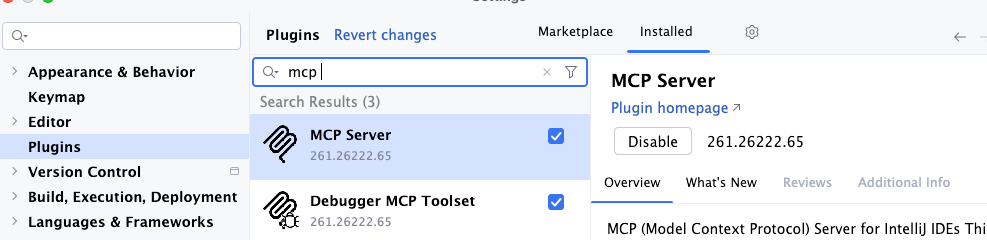
MCP Server is normally installed and enabled by default with recent IDEA versions. If the plugin or the Tools | MCP Server settings page is missing, make sure your IDEA version is 2025.2 or later.
After enabling or updating either plugin, restart IDEA and reopen the target project so DebugTools can register its MCP tools during project startup.
2. Enable the MCP Server
- Open
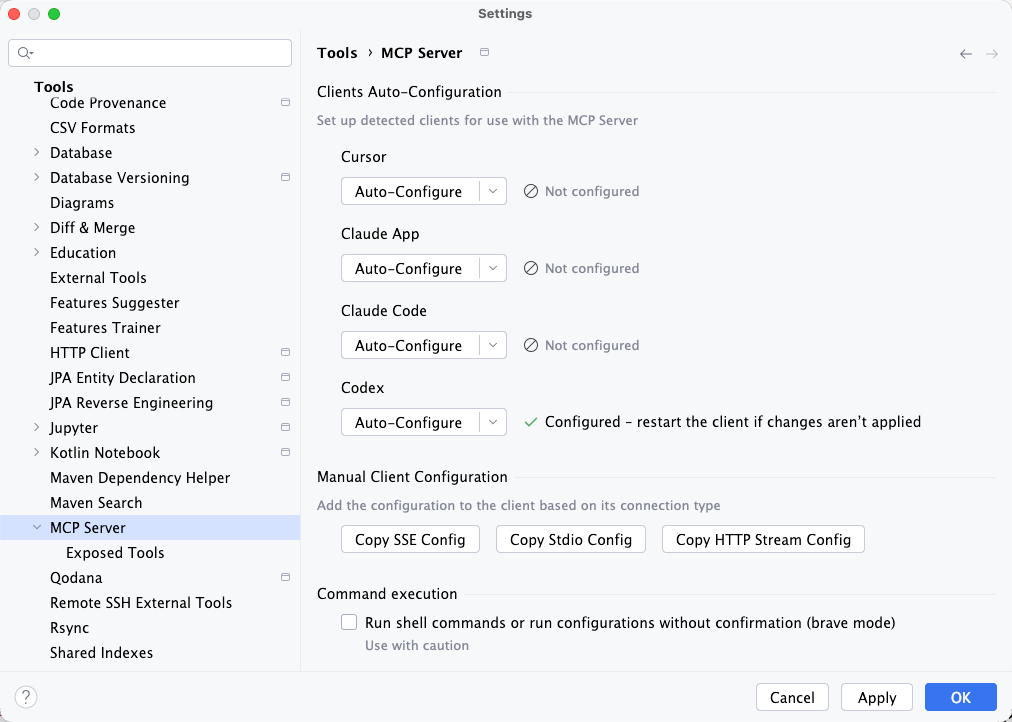
Settings | Tools | MCP Server. - Click
Enable MCP Server. - Read the authorization notice and confirm.
Once enabled, external AI clients can access projects open in IDEA and may read files, trigger IDE actions, or run commands. Configure connections only for trusted local AI clients. You can disable the MCP Server from the same page when it is not in use.
INFO
Run shell commands or run configurations without confirmation (brave mode) is not required for DebugTools MCP. It reduces IDEA confirmation prompts for commands and run configurations, so enable it only if it matches your security requirements.
3. Connect an AI Client
IDEA supports automatic and manual client configuration. Prefer automatic configuration to avoid entering ports or connection parameters manually.
Automatic Configuration
- Find
Clients Auto-ConfigurationunderSettings | Tools | MCP Server. - Click
Auto-Configurefor the target AI client. - Restart the AI client after configuration completes.
To inspect what IDEA wrote, open the client's configuration menu and select Open Client Settings File. You can also select Copy Config and add the configuration to the client manually.
Manual Configuration
If IDEA does not detect your client, choose a connection type supported by the client under Manual Client Configuration:
Copy Stdio ConfigCopy SSE ConfigCopy HTTP Stream Config
Add the complete copied configuration to the AI client and restart it. Transport support and configuration file locations vary by client, so follow that client's MCP documentation.
WARNING
Do not guess the MCP port from another machine or an old configuration. If IDEA detects a client port mismatch, run Auto-Configure again or copy a fresh configuration from the current IDEA instance.
Verify in Codex
After IDEA completes automatic configuration and Codex restarts, open Plugins | MCP in Codex settings. Confirm that a server named idea appears and is enabled.

If idea is missing, return to IDEA and run Auto-Configure again. If it is listed but unavailable, make sure its switch is enabled and restart Codex.
4. Check the DebugTools Tools
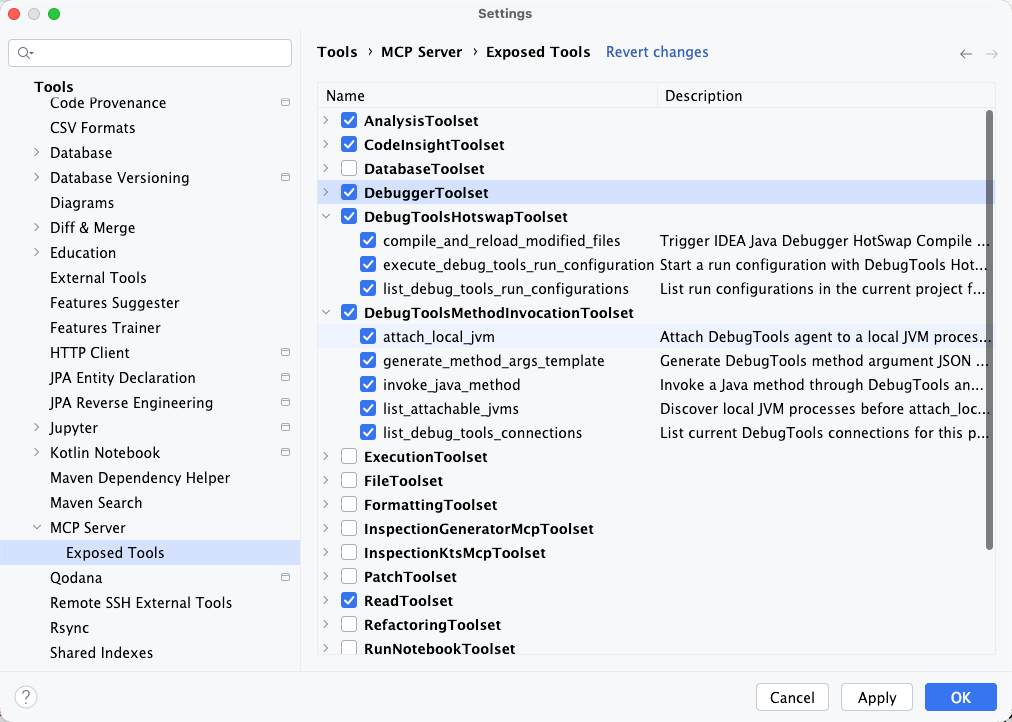
Open Settings | Tools | MCP Server | Exposed Tools and make sure the following two toolsets and their tools are available and enabled.
Method Invocation Toolset
This toolset appears in Exposed Tools as DebugToolsMethodInvocationToolset:
list_debug_tools_connections
list_attachable_jvms
attach_local_jvm
generate_method_args_template
invoke_java_method
list_method_around_scripts
get_method_around_script
get_debug_tools_status
search_http_url
read_target_application_logs
get_last_sql_statements
These 11 tools cover connections and method invocation, plus status, HTTP URL, script, log, and SQL queries. See Method Invocation MCP for details.
Hotswap Toolset
This toolset appears in Exposed Tools as DebugToolsHotswapToolset:
list_debug_tools_run_configurations
execute_debug_tools_run_configuration
compile_and_reload_modified_files
get_hotswap_operation
run_and_invoke
These tools inspect IDEA run configurations, start applications through DebugTools Hotswap, and invoke IDEA Java Debugger's compile-and-reload capability. See Hotswap MCP for details.
You can also use Tools | Show MCP Tools in IDEA to inspect every tool, description, and parameter currently exposed by the MCP Server.
5. Run a Minimal Test
After restarting the AI client, enter the following in a task associated with the target project:
Use list_debug_tools_connections from IDEA MCP to inspect the DebugTools connections for the current project.Either of these results confirms that the AI client can call DebugTools MCP:
- One or more DebugTools connections are returned.
count=0or an empty connection list is returned, meaning the MCP call succeeded but the current project has no DebugTools connection.
Next Steps
- Read Method Invocation MCP for connection, invocation, HTTP search, and pre/post script parameters.
- Read Hotswap MCP for the five startup, hot reload, and orchestration tools.
- Install the DebugTools Skills so the AI follows the recommended tool sequence automatically.