
Request Headers
Request headers add context to a method invocation, such as authentication tokens, tenant identifiers, language, canary release flags, and request source information. DebugTools supports headers at three levels: method, application, and project. When a method is invoked, DebugTools merges these headers and sends the result to the target JVM. Application-level headers are stored in the current connection and affect only the application associated with that connection.
Three Configuration Levels
Method-Level
The Headers tab on the method invocation page shows all method-level, application-level, and project-level headers that currently take effect. The number after the tab name is the number of effective headers after merging and deduplication.
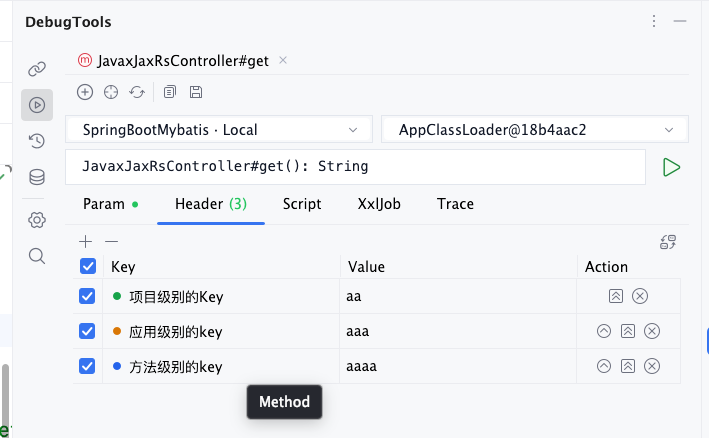
Identify the Header Source
The colored dot before Key indicates the header source. Hover over the dot or the key to see the source tooltip:
| Source | Light Theme | Dark Theme | Tooltip | Scope |
|---|---|---|---|---|
| Method | Blue #2563EB | Blue #60A5FA | Method | Applies only to the current method. |
| Application | Orange #D97706 | Orange #F59E0B | Application | Applies to the application associated with the current connection. |
| Project | Green #16A34A | Green #22C55E | Project | Applies to all DebugTools invocations in the current IDEA project. |
Only the highest-priority row is shown for duplicate keys. For example, if the same key exists at both the method and application levels, the table only shows the method-level value.
Configure Request Headers
Each row is one header key-value pair:
- Only enabled rows are included in the invocation.
Keyis the header name, such asAuthorization,X-Tenant-Id, orAccept-Language.Valueis the header value, such asBearer tokenortenant-a.- When entering a header name, the editor suggests common HTTP headers and shows a description for each one. Selecting a suggestion writes it into the current cell.
- To reuse these headers for the same method, click
 in the toolbar to save them to the method parameter cache. They are restored automatically the next time you open the same method.
Method-level headers are suitable for temporary debugging, method-specific differences, or overriding application-level and project-level defaults. For example, if only one method in an application needs to switch tenants, configure X-Tenant-Id at the method level.
The checkboxes and keys of inherited application-level and project-level rows cannot be changed on the method invocation page. You can edit the Value directly and then use the sync button in the Action column to save it to the corresponding level. Editing a Value without performing a sync action does not change the header used by the actual invocation.
Row Actions
Buttons in the Action column vary with the header source. Hover over a button to see the action name:
| Button | Tooltip | Action |
|---|---|---|
 | Sync to Application Headers | Moves a method-level row to the application level. For an application-level row, saves the edited Value to the current application. This button is not shown on project-level rows. |
 | Sync to Project Headers | Saves the current value at the project level. For a method-level or application-level row, it also removes same-key overrides from the current method and application, so the source shown in the table changes to project. For a project-level row, it saves the edited Value. |
 | Remove Header | Removes the header from the level it belongs to. If an application-level header is removed and a project-level header with the same key exists, the project-level value becomes visible and takes effect again. |
All three Action icons use the plugin's neutral gray color. The colored dot before the Key identifies the source.
Editing Toolbar
The toolbar above the header table is used to maintain headers:
| Button | Shown In | Action |
|---|---|---|
 | Method invocation page, application-level settings, and project-level settings | Adds an enabled header row at the current level. |
 | Method invocation page, application-level settings, and project-level settings | On the method invocation page, clears only method-level headers while inherited application-level and project-level rows remain. In a settings dialog, clears the current level. |
 | Application-level and project-level settings | Discards current edits and reloads the saved headers for that level. |
 | Application-level and project-level settings | Saves enabled headers at the current level. Save method-level headers with in the method invocation toolbar. |
 | Table toolbar | Switches between table mode and text mode. |
The checkbox in the first column controls whether a row is enabled. Click the header checkbox to enable or disable all rows in bulk. The remove button in each row deletes only that row.
Click to switch headers to text mode, which is convenient for pasting or batch editing:
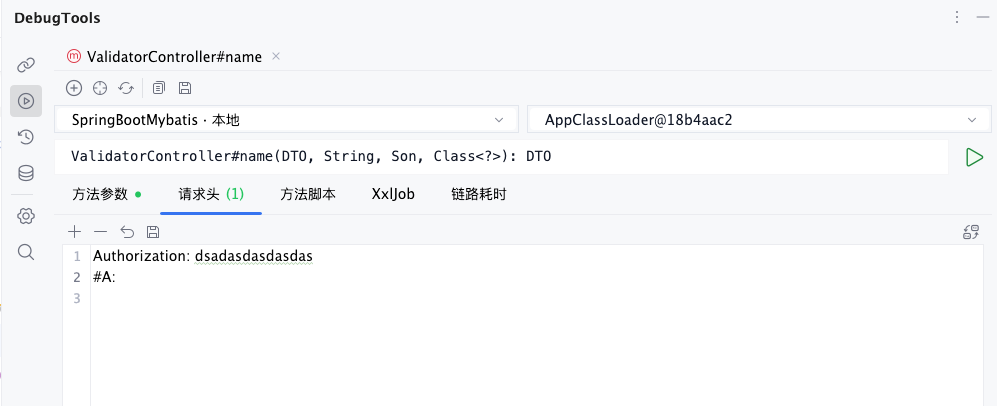
In text mode, each line uses the Key: Value format. Prefix a line with # to disable that header. For example, #Authorization: Bearer token becomes an unchecked header row. Click again to convert the text back to the table.
Application-Level
Application-level headers are configured on an individual connection card on the connection management page. They apply only to the application associated with that connection.
Click  on a connection card to open the Header dialog. After saving, all method invocations for that application include these headers by default. Expand the connection card to view the headers already saved for the application in the details area.
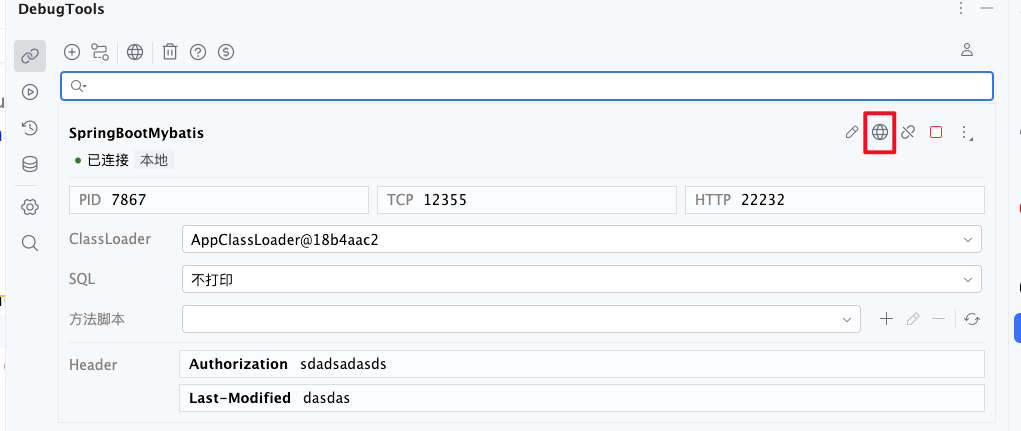
Application-level headers are suitable for fixed context that differs by application, environment, or instance, for example:
- A test application always uses
X-Env: test. - A tenant-specific application always uses
X-Tenant-Id: tenant-a. - When the same IDEA project connects to multiple applications, each connection stores its own authentication or environment headers.
TIP
Application-level headers are stored in memory with the connection record.
Project-Level
Project-level headers are configured through in the connection management toolbar. The button is shown as Global Header, and its practical scope is the default DebugTools headers for the current IDEA project.
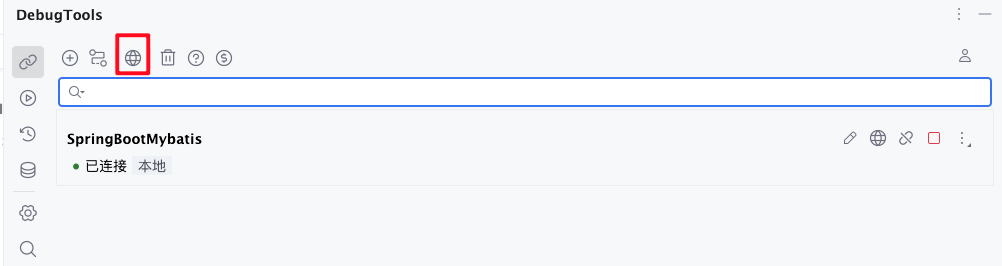
After saving, all connections and method invocations in the current project include these headers by default. Project-level headers are suitable for truly shared defaults, such as:
- A
User-Agentused by all debug invocations. - A base authentication header shared by the current project.
- Language, channel, or request source identifiers shared by all services.
WARNING
Project-level headers have the widest scope. If the same IDEA project connects to multiple applications with different authentication, tenant, or environment values, use application-level headers instead of project-level headers.
Merge Priority
When invoking a method, DebugTools merges the three levels into the final request headers:
Method-level > Application-level > Project-levelIf the same header key appears at multiple levels, only the highest-priority value is used:
| Header Key | Project-Level | Application-Level | Method-Level | Final Value |
|---|---|---|---|---|
Authorization | Bearer project-token | Bearer connection-token | Bearer method-token | Bearer method-token |
X-Tenant-Id | tenant-default | tenant-a | Not set | tenant-a |
Accept-Language | en-US | Not set | Not set | en-US |
In other words:
- Method-level headers are not overwritten by application-level or project-level headers.
- Application-level headers are not overwritten by project-level headers.
- Project-level headers are used only when neither the method nor the application has the same key.
Storage and Cache Cleanup
Storage
- Method-level: file
- Application-level: memory
- Project-level: file
Cache cleanup
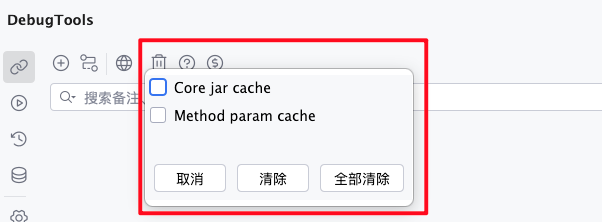
Method param cacheclears method-level headers.Clear allclears method-level and project-level headers.- You can also delete headers individually at their corresponding locations and save the changes.
TIP
- Headers are used when constructing Spring MVC and Spring WebFlux request objects.
- If the target method has parameters such as
HttpServletRequest,ServerHttpRequest, orServerWebExchange, those objects can also read the merged headers for the current invocation.