
SQL History
SQL History is used to view local SQL files generated by Save executed SQL to file. After saving is enabled, DebugTools writes SQL by application and date under the current user's home directory, and the SQL History page scans those files into a list.
Open SQL History
Click  in the DebugTools tool window to open SQL History. You can also open SQL History for the current application from the connection card menu on the connection management page.
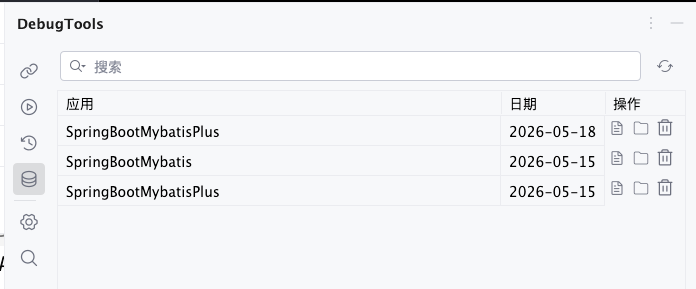
The list contains three columns:
| Column | Description |
|---|---|
Application | The application that owns the SQL file. The application name is used to generate the local directory name. |
Date | The SQL file date, corresponding to {yyyy-MM-dd}.sql. |
Action | Open the file, reveal it in the file manager, or delete it. |
The search box filters the list by application name or date. Click  to rescan local SQL files.
Common Actions
| Icon | Button | Description |
|---|---|---|
 | Open SQL File | Open the SQL file for the current row in the IDE editor. Double-clicking a row also opens the file. |
 | Reveal In Folder | Open the system file manager and reveal the directory containing the SQL file. |
 | Delete SQL File | Delete the current SQL file after confirmation. |
| Refresh | Reload local SQL history files. |
Local Storage
SQL history files are stored under the current user's home directory:
~/.debugTools/sql/{application}/{yyyy-MM-dd}.sqlThe application name is converted into a file-system-safe directory name. Characters such as spaces and slashes are replaced with -. If the application name is empty, application is used.
Each application has one .sql file per day. New SQL records are appended to the end of the current day's file. Each record contains the execution time, database type, elapsed time, and SQL text:
-- 2026-05-18 14:30:12 | mysql | 12ms
select * from user where id = 1;
SQL files are not automatically cleaned by retention days. They are kept until you delete them manually. You can delete a date file from SQL History, or clean files directly from the local directory.
Relation To SQL Settings
SQL History only views and manages SQL files that have already been saved. To generate records, select Pretty or Compress in SQL Settings, and enable Save executed SQL to file.
If SQL printing is disabled, or saving to file is not enabled, SQL History will not receive new records.